React Native UI Kit Sample App

Reference implementation of React Native UI Kit, FCM and Push Notification Setup.

What this guide covers

  • CometChat Dashboard setup (enable push, add FCM providers).
  • Platform credentials (Firebase).
  • Copying the sample notification stack and aligning IDs/provider IDs.
  • Native glue for Android (manifest permissions).
  • VoIP call alerts with FCM data-only pushes + CallKeep native dialer.
  • Token registration, navigation from pushes, testing, and troubleshooting.

What you need first

  • CometChat app credentials (App ID, Region, Auth Key) and Push Notifications enabled with an FCM provider (React Native Android).
  • Firebase project with an Android app (google-services.json in android/app) and Cloud Messaging enabled.
  • React Native 0.81+, Node 18+, physical Android devices for reliable push/call testing.

How FCM + CometChat work together

  • FCM (Android) is the transport: Firebase issues the Android FCM token and delivers payloads to devices.
  • CometChat provider holds your credentials: The FCM provider you add (for React Native Android) stores your Firebase service account JSON.
  • Registration flow: Request permission → Android returns the FCM token → after CometChat.login, register with CometChatNotifications.registerPushToken(token, platform, providerId) using FCM_REACT_NATIVE_ANDROID → CometChat sends pushes to FCM on your behalf → the app handles taps/foreground events via Notifee.

1. Enable push and add providers (CometChat Dashboard)

  1. Go to Notifications → Settings and enable Push Notifications.
Enable Push Notifications
  1. Add an FCM provider for React Native Android; upload the Firebase service account JSON and copy the Provider ID.
Upload FCM service account JSON

2. Prepare platform credentials

2.1 Firebase Console

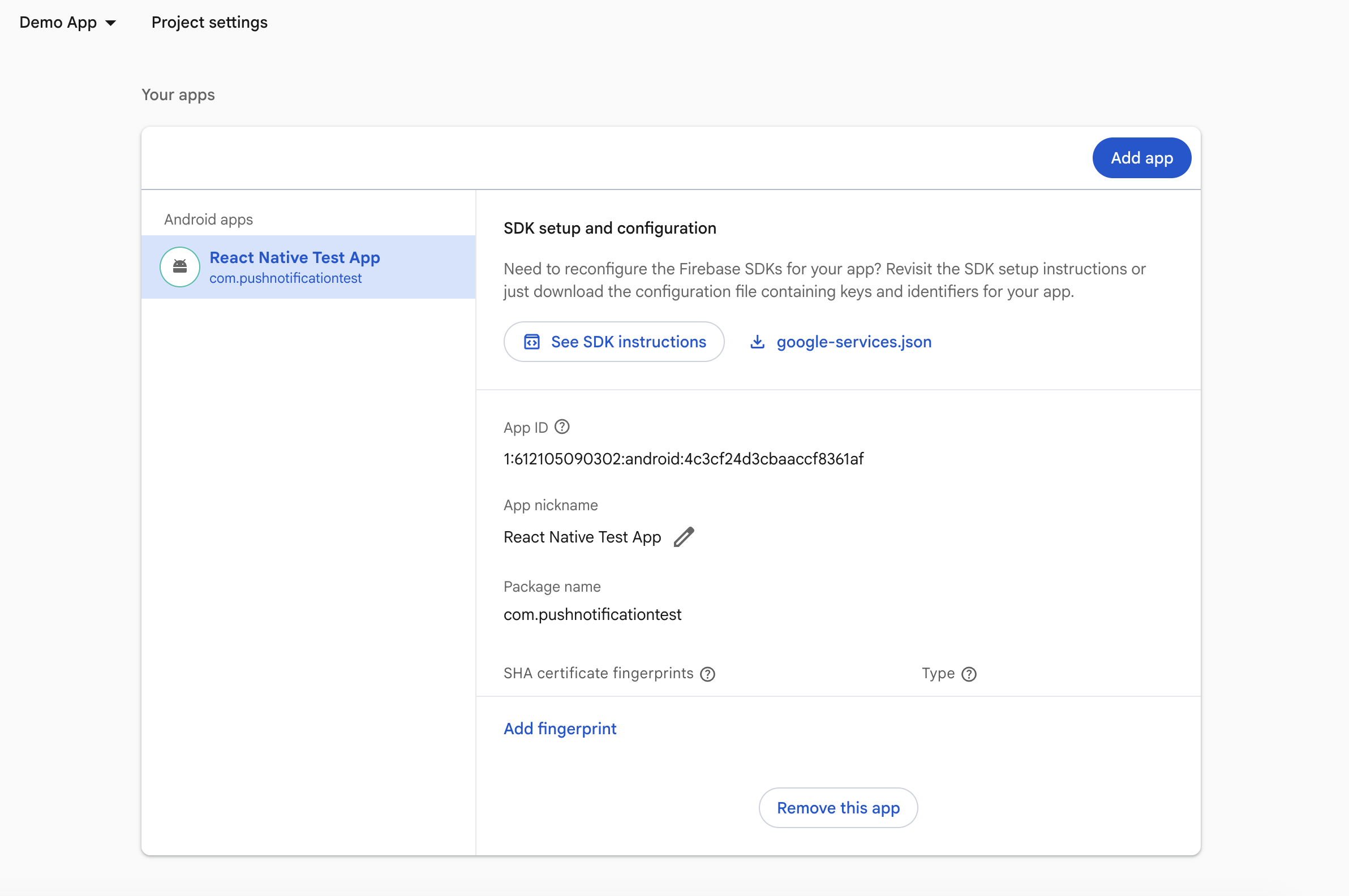
  1. Register your Android package name (same as applicationId in android/app/build.gradle) and download google-services.json into android/app.
  2. Enable Cloud Messaging.
Firebase - Push Notifications

3. Local configuration

  • Update src/utils/AppConstants.tsx with appId, authKey, region, and fcmProviderId.
  • Keep app.json name consistent with your bundle ID / applicationId.
const APP_ID = "";  
const AUTH_KEY = ""; 
const REGION = ""; 
const DEMO_UID = "cometchat-uid-1";

3.1 Dependencies snapshot (from Sample App)

Install these dependencies in your React Native app:
npm install \
    @react-native-firebase/app@23.4.0 \
    @react-native-firebase/messaging@23.4.0 \
    @notifee/react-native@9.1.8 \
    @cometchat/chat-sdk-react-native@4.0.18 \
    @cometchat/calls-sdk-react-native@4.4.0 \
    @cometchat/chat-uikit-react-native@5.2.6 \
    @react-native-async-storage/async-storage@2.2.0 \
    react-native-callkeep@github:cometchat/react-native-callkeep \
    react-native-voip-push-notification@3.3.3
Match these or newer compatible versions in your app.

4. Android App Setup

4.1 Configure Firebase with Android credentials

To allow Firebase on Android to use the credentials, the google-services plugin must be enabled on the project. This requires modification to two files in the Android directory. First, add the google-services plugin as a dependency inside of your /android/build.gradle file:
buildscript {
  dependencies {
    // ... other dependencies
    classpath("com.google.gms:google-services:4.4.4") 
  }
}
Lastly, execute the plugin by adding the following to your /android/app/build.gradle file:
apply plugin: 'com.android.application'
apply plugin: 'com.google.gms.google-services'

4.2 Configure required permissions in AndroidManifest.xml as shown.

    <uses-permission android:name="android.permission.INTERNET" />
    <uses-permission android:name="android.permission.WRITE_EXTERNAL_STORAGE" />
    <uses-permission android:name="android.permission.READ_EXTERNAL_STORAGE" />
    <uses-permission android:name="android.permission.VIBRATE" />
    <uses-permission android:name="android.permission.CAMERA" />
    <uses-permission android:name="android.permission.RECORD_AUDIO" />
    <uses-permission android:name="com.google.android.c2dm.permission.RECEIVE" />
    <uses-permission android:name="android.permission.POST_NOTIFICATIONS"/>  
    <uses-permission android:name="android.permission.BIND_TELECOM_CONNECTION_SERVICE"/>
    <uses-permission android:name="android.permission.FOREGROUND_SERVICE" />
    <uses-permission android:name="android.permission.READ_PHONE_STATE" />
    <uses-permission android:name="android.permission.CALL_PHONE" />
    <uses-permission android:name="android.permission.WAKE_LOCK" />
    <!-- Android 14+ foreground service types for camera/mic during calls -->
    <uses-permission android:name="android.permission.FOREGROUND_SERVICE_MICROPHONE" />
    <uses-permission android:name="android.permission.FOREGROUND_SERVICE_CAMERA" />
and ask for runtime permissions where needed (e.g. POST_NOTIFICATIONS on Android 13+).
import { PermissionsAndroid, Platform } from "react-native";

  const requestAndroidPermissions = async () => {
    if (Platform.OS !== 'android') return;

    try {
        // Ask for push‑notification permission
        const authStatus = await messaging().requestPermission();
        const enabled =
            authStatus === messaging.AuthorizationStatus.AUTHORIZED ||
            authStatus === messaging.AuthorizationStatus.PROVISIONAL;

        if (!enabled) {
            console.warn('Notification permission denied (FCM).');
        }
    } catch (error) {
        console.warn('FCM permission request error:', error);
    }

    try {
        await PermissionsAndroid.requestMultiple([
            PermissionsAndroid.PERMISSIONS.WRITE_EXTERNAL_STORAGE,
            PermissionsAndroid.PERMISSIONS.READ_EXTERNAL_STORAGE,
            PermissionsAndroid.PERMISSIONS.CAMERA,
            PermissionsAndroid.PERMISSIONS.RECORD_AUDIO,
            PermissionsAndroid.PERMISSIONS.POST_NOTIFICATIONS,
        ]);
    } catch (err) {
        console.warn('Android permissions error:', err);
    }
}

4.3 Register FCM token with CometChat

Inside your main app file where you initialize CometChat, add the below code snippet after the user has logged in successfully. Initilize and register the FCM token for Android as shown:
requestAndroidPermissions();

const FCM_TOKEN = await messaging().getToken();
console.log("FCM Token:", FCM_TOKEN);

// For React Native Android
CometChatNotifications.registerPushToken(
        FCM_TOKEN,
        CometChatNotifications.PushPlatforms.FCM_REACT_NATIVE_ANDROID,
        "YOUR_FCM_PROVIDER_ID" // from CometChat Dashboard
    )
    .then(() => {
        console.log("Token registration successful");
    })
    .catch((err) => {
        console.log("Token registration failed:", err);
    });

4.4 Unregister FCM token on logout

Typically, push token unregistration should occur prior to user logout, using the CometChat.logout() method. For token unregistration, use the CometChatNotifications.unregisterPushToken() method provided by the SDKs.

5. VoIP call notifications

These steps are Android-only—copy/paste and fill your IDs.

5.1 Add CallKeep services to android/app/src/main/AndroidManifest.xml

Inside the <application> tag add:
<service
    android:name="io.wazo.callkeep.VoiceConnectionService"
    android:permission="android.permission.BIND_TELECOM_CONNECTION_SERVICE"
    android:foregroundServiceType="camera|microphone"
    android:exported="true">
    <intent-filter>
        <action android:name="android.telecom.ConnectionService" />
    </intent-filter>
</service>

<service android:name="io.wazo.callkeep.RNCallKeepBackgroundMessagingService" />

5.2 Background handler for call pushes (index.js)

Data-only FCM calls show the native dialer even when the app is killed.
import messaging from "@react-native-firebase/messaging";
import { Platform } from "react-native";
import { CometChat } from "@cometchat/chat-sdk-react-native";
import { voipHandler } from "./VoipNotificationHandler";
import { displayLocalNotification } from "./LocalNotificationHandler";

if (Platform.OS === "android") {
  messaging().setBackgroundMessageHandler(async remoteMessage => {
    const data = remoteMessage.data || {};
    if (data.type === "call") {
      await voipHandler.initialize();
      switch (data.callAction) {
        case "initiated":
          voipHandler.msg = data;
          await voipHandler.displayCallAndroid();
          break;
        case "ended":
        case "unanswered":
        case "busy":
        case "rejected":
        case "cancelled":
          CometChat.clearActiveCall();
          if (voipHandler?.callerId) {
            voipHandler.removeCallDialerWithUUID(voipHandler.callerId);
          }
          await voipHandler.endCall({ callUUID: voipHandler.callerId });
          break;
        case "ongoing":
          voipHandler.displayNotification({
            title: data?.receiverName || "",
            body: "ongoing call",
          });
          break;
        default:
          break;
      }
      return;
    }
    await displayLocalNotification(remoteMessage);
  });
}

5.3 Drop in VoipNotificationHandler.ts

Handles CallKeep setup, shows the incoming call UI, accepts/rejects via CometChat, and defers acceptance if login/navigation isn’t ready.
import { Platform } from "react-native";
import notifee, { AndroidImportance } from "@notifee/react-native";
import RNCallKeep, { IOptions } from "react-native-callkeep";
import { CometChat } from "@cometchat/chat-sdk-react-native";
import { setPendingAnsweredCall } from "./PendingCallManager";

const options: IOptions = {
  android: {
    alertTitle: "VoIP permissions",
    alertDescription: "Allow phone account access to show incoming calls",
    cancelButton: "Cancel",
    okButton: "OK",
    imageName: "ic_notification",
    additionalPermissions: [],
    foregroundService: {
      channelId: "com.cometchat.sampleapp.reactnative.android",
      channelName: "Sampleapp Channel",
      notificationTitle: "Sampleapp is running in the background",
    },
  },
  ios: { appName: "Sampleapp" },
};

function uuid() {
  return "xxxxxxxx-xxxx-4xxx-yxxx-xxxxxxxxxxxx".replace(/[xy]/g, (c) => {
    const r = Math.floor(Math.random() * 16);
    const v = c === "x" ? r : (r & 0x3) | 0x8;
    return v.toString(16);
  });
}

class VoipNotificationHandler {
  channelId = "";
  isRinging = false;
  isAnswered = false;
  pendingAcceptance = false;
  callerId = "";
  msg: any = {};
  initialized = false;
  private setupPromise: Promise<void> | null = null;
  private listenersAttached = false;

  async initialize() {
    if (this.initialized && this.setupPromise) {
      await this.setupPromise;
      return;
    }
    if (!this.setupPromise) {
      this.setupPromise = (async () => {
        if (Platform.OS === "android") {
          await this.createNotificationChannel();
        }
        await this.getPermissions();
        this.setupEventListeners();
        this.initialized = true;
      })().catch((err) => {
        this.setupPromise = null;
        throw err;
      });
    }
    await this.setupPromise;
  }

  async getPermissions() {
    await RNCallKeep.setup(options);
    RNCallKeep.setAvailable(true);
    RNCallKeep.setReachable();
    try {
      await RNCallKeep.checkPhoneAccountEnabled();
    } catch {}
  }

  async createNotificationChannel() {
    this.channelId = await notifee.createChannel({
      id: "message",
      name: "Messages",
      lights: true,
      vibration: true,
      importance: AndroidImportance.HIGH,
    });
  }

  async displayNotification({
    title,
    body,
    data,
  }: {
    title: string;
    body: string;
    data?: any;
  }) {
    if (Platform.OS === "android" && !this.channelId)
      await this.createNotificationChannel();
    await notifee.displayNotification({
      title,
      body,
      data,
      android: this.channelId
        ? { channelId: this.channelId, smallIcon: "ic_launcher" }
        : undefined,
    });
  }

  async displayCallAndroid() {
    if (this.isAnswered || this.pendingAcceptance) return;
    await this.initialize();
    this.isRinging = true;
    this.callerId = uuid();
    const callerName = this.msg?.senderName || "Incoming Call";
    await RNCallKeep.displayIncomingCall(
      this.callerId,
      callerName,
      callerName,
      "generic",
    );
  }

  onAnswerCall = async ({ callUUID }: { callUUID: string }) => {
    if (this.isAnswered) return;
    this.isRinging = false;
    this.isAnswered = true;
    const sessionID = this.msg?.sessionId;
    if (!sessionID) return;

    setTimeout(async () => {
      const loggedInUser = await CometChat.getLoggedinUser().catch(() => null);
      if (!loggedInUser) {
        this.pendingAcceptance = true;
        await setPendingAnsweredCall({
          sessionId: sessionID,
          raw: this.msg,
          storedAt: Date.now(),
        });
        try {
          RNCallKeep.backToForeground();
        } catch (err) {
          // Activity may not exist yet if app was killed - the pending call will be handled when app opens
          console.log(
            "[VoIP] backToForeground failed, pending call saved:",
            err,
          );
        }
        return;
      }
      try {
        await CometChat.acceptCall(sessionID);
      } catch (error: any) {
        if (error?.code !== "ERR_CALL_USER_ALREADY_JOINED") throw error;
      }
      RNCallKeep.endAllCalls();
      this.pendingAcceptance = false;
    }, 600);
  };

  endCall = async ({ callUUID }: { callUUID: string }) => {
    if (this.msg?.type === "call") {
      const sessionID = this.msg.sessionId;
      if (this.isAnswered && sessionID) {
        this.isAnswered = false;
        CometChat.endCall(sessionID);
      } else if (sessionID) {
        const loggedInUser = await CometChat.getLoggedinUser().catch(
          () => null,
        );
        if (loggedInUser) {
          setTimeout(() => {
            CometChat.rejectCall(sessionID, CometChat.CALL_STATUS.REJECTED);
          }, 300);
        }
      }
    }
    const id = callUUID || this.callerId;
    if (id) RNCallKeep.endCall(id);
    RNCallKeep.endAllCalls();
    this.isRinging = false;
    this.isAnswered = false;
    this.pendingAcceptance = false;
    this.callerId = "";
    this.msg = {};
  };

  removeCallDialerWithUUID = (callerId: string) => {
    const id = callerId || this.callerId;
    if (id) RNCallKeep.reportEndCallWithUUID(id, 6);
  };

  setupEventListeners() {
    if (this.listenersAttached) return;
    RNCallKeep.addEventListener("answerCall", this.onAnswerCall);
    RNCallKeep.addEventListener("endCall", this.endCall);
    RNCallKeep.addEventListener("didDisplayIncomingCall", ({ callUUID }) => {
      if (callUUID) this.callerId = callUUID;
      this.isRinging = true;
    });
    this.listenersAttached = true;
  }
}

export const voipHandler = new VoipNotificationHandler();

5.4 Add PendingCallManager.ts

Stores an answered call during cold-start so you can accept it once login/navigation is ready.
import AsyncStorage from "@react-native-async-storage/async-storage";

export interface PendingAnsweredCallPayload {
  sessionId: string;
  raw: any;
  storedAt: number;
}

let inMemoryPending: PendingAnsweredCallPayload | null = null;
const STORAGE_KEY = "pendingAnsweredCall";

export async function setPendingAnsweredCall(payload: PendingAnsweredCallPayload) {
  inMemoryPending = payload;
  try { await AsyncStorage.setItem(STORAGE_KEY, JSON.stringify(payload)); } catch {}
}

export async function consumePendingAnsweredCall(): Promise<PendingAnsweredCallPayload | null> {
  if (inMemoryPending) {
    const tmp = inMemoryPending;
    inMemoryPending = null;
    try { await AsyncStorage.removeItem(STORAGE_KEY); } catch {}
    return tmp;
  }
  try {
    const raw = await AsyncStorage.getItem(STORAGE_KEY);
    if (raw) {
      await AsyncStorage.removeItem(STORAGE_KEY);
      const parsed: PendingAnsweredCallPayload = JSON.parse(raw);
      inMemoryPending = null;
      return parsed;
    }
  } catch {}
  return null;
}

export function isPendingStale(p: PendingAnsweredCallPayload, maxAgeMs = 2 * 60 * 1000) {
  return Date.now() - p.storedAt > maxAgeMs;
}

5.5 Wire App.tsx to init VoIP + consume pending accepts

Add this after CometChat init/login:
import { Platform } from "react-native";
import messaging from "@react-native-firebase/messaging";
import { CometChat, CometChatNotifications } from "@cometchat/chat-sdk-react-native";
import { voipHandler } from "./VoipNotificationHandler";
import { consumePendingAnsweredCall, isPendingStale } from "./PendingCallManager";

if (Platform.OS === "android") {
  const fcmToken = await messaging().getToken();
  await CometChatNotifications.registerPushToken(
    fcmToken,
    CometChatNotifications.PushPlatforms.FCM_REACT_NATIVE_ANDROID,
    "YOUR_FCM_PROVIDER_ID"
  );
}

useEffect(() => {
  if (Platform.OS === "android" && loggedIn) {
    const t = setTimeout(() => voipHandler.initialize(), 3000);
    return () => clearTimeout(t);
  }
}, [loggedIn]);

// Handle pending calls in a useEffect
useEffect(() => {
  const handlePendingCall = async () => {
    const pending = await consumePendingAnsweredCall();
    if (pending && !isPendingStale(pending)) {
      try {
        await CometChat.acceptCall(pending.sessionId);
      } catch (err) {
        console.log(err);
      }
    }
  };
  handlePendingCall();
}, []);

5.6 Call push payload (FCM data)

Send a data-only FCM message like:
{
  "to": "<DEVICE_FCM_TOKEN>",
  "priority": "high",
  "data": {
    "type": "call",
    "callAction": "initiated",
    "sessionId": "<COMETCHAT_SESSION_ID>",
    "senderName": "Alice",
    "receiverName": "Bob"
  }
}

5.7 Local notification helper (LocalNotificationHandler.ts)

Ensure @notifee/react-native is installed (listed in Dependencies above). Add this helper next to your index.js to show local alerts for non-call pushes:
import { Platform } from "react-native";
import notifee, { AndroidImportance } from "@notifee/react-native";

const CHANNEL_ID = "default";

async function ensureChannel(): Promise<string | undefined> {
  if (Platform.OS !== "android") return undefined;
  return notifee.createChannel({
    id: CHANNEL_ID,
    name: "Default",
    lights: true,
    vibration: true,
    importance: AndroidImportance.HIGH,
  });
}

export async function displayLocalNotification(remoteMessage: any) {
  try {
    const { notification = {}, data = {} } = remoteMessage || {};
    const title = notification?.title || data?.title || "Notification";
    const body = notification?.body || data?.body || "";

    if (Platform.OS === "ios") {
      await notifee.requestPermission();
    }

    const channelId = await ensureChannel();

    await notifee.displayNotification({
      title,
      body,
      data,
      android: channelId
        ? {
            channelId,
            pressAction: { id: "default" },
            importance: AndroidImportance.HIGH,
            smallIcon: "ic_launcher",
          }
        : undefined,
    });
  } catch (error) {
    console.error("[LocalNotificationHandler] Failed to display notification", error);
  }
}
  • For a proper notification icon, create a dedicated ic_notification.xml (vector) or PNG in android/app/src/main/res/drawable/; Android expects a white glyph with transparency for best results.

6. Handling notification taps and navigation

To handle notification taps and navigate to the appropriate chat screen, you need to set up handlers for both foreground and background notifications.

7. Testing checklist

  1. Android: install on device, grant POST_NOTIFICATIONS; log in and verify FCM token registration success.
  2. Send a message from another user:
    • Foreground: Notifee banner shows unless that chat is open.
    • Background/terminated: tap opens the correct conversation; Notifee background handler runs.
  3. VoIP call: send callAction=initiated push; expect native dialer to show. Answer and verify the call connects; send callAction=ended to clear it.
  4. Rotate tokens (reinstall or revoke) and confirm onTokenRefresh re-registers.

8. Troubleshooting

SymptomQuick checks
No pushesConfirm google-services.json location, package IDs match Firebase, Push extension enabled with correct provider IDs, permissions granted.
Token registration failsEnsure registration runs after login, provider IDs are set, and registerDeviceForRemoteMessages() is called (Android).